How to copy text from Claude Code (without the terminal pain)
Copying Claude Code output from the terminal is awkward — line wraps break selection, ANSI color codes leak into the clipboard, and code blocks lose their Markdown formatting. claude-devtools renders every message as real selectable text with one-click copy.
Short answer. Copying from a terminal mangles Claude Code output — selection wraps at the terminal width, ANSI color escape codes leak into the clipboard, and Markdown code blocks lose their fences. claude-devtools renders every Claude Code message as real selectable text in a normal application window, so you can copy a code block, file path, or full response with a click and paste it cleanly into anywhere — GitHub, Slack, Notion, an issue, another Claude session.
Why copying from the terminal is broken
The terminal is a grid of characters, not a document. When Claude Code prints a 200-character line, the terminal hard-wraps it at the window edge. When you select that line, your clipboard gets the wrapped version — with newlines in the middle of sentences, words split across lines, and indentation that no longer matches the original code.
Three problems come up over and over:
- Wrapped lines — long file paths, URLs, and code lines get newlines injected at the terminal column width. Pasting a wrapped command into a shell breaks it. Pasting a wrapped sentence into Markdown ruins the formatting.
- ANSI escape codes — terminals use sequences like
\x1b[31mfor color. Some terminals strip these on copy, some do not. If they leak through, you paste invisible junk into your editor or chat client. - No Markdown structure — Claude Code writes responses as Markdown, but the terminal flattens it. You lose code fences, list markers, and heading levels. A response that looked clean on screen pastes as a wall of indented prose.
This matters because Claude Code output is usually the input to something else: a GitHub comment, a Slack DM to a teammate, a follow-up prompt to a different model, or notes in a doc. Every paste from the terminal is a chance to introduce noise.
What claude-devtools does differently
claude-devtools is a desktop app — Electron on macOS, Linux, and Windows — not a terminal. Every Claude Code message, tool call, and tool output is rendered as real DOM text the same way it would render in a browser:
- Real selection. Drag to select any range of text. Selection follows the visual layout of the message, not the terminal's column grid. Long lines stay on one logical line; wrapping is visual only.
- Per-block copy. Hover over a code block to reveal a copy button — one click copies the original Markdown content (with newlines and indentation preserved), not the rendered display.
- No ANSI codes. claude-devtools parses the JSONL transcript directly. ANSI escape sequences never enter the clipboard because they were never part of the source — they only existed in the terminal's screen buffer.
- Markdown preserved. Code fences, bullet lists, headings, inline
code, and links round-trip correctly when you paste into another Markdown surface (GitHub, Notion, dev.to, Obsidian, etc.). Where appropriate, claude-devtools also exposes a "Copy as Markdown" action so you get the raw source, not the rendered output.
Copying a single message
To copy a complete Claude response — including thinking, tool calls, and final text — open the session in claude-devtools, hover the message, and use the copy action. The output is plain text (or Markdown, depending on your preference) and pastes cleanly into anything that accepts text.
The same works for user messages and tool results. There is no terminal in the loop, so there is no terminal-shaped output to clean up.
Copying a code block
When Claude returns a code block, the terminal shows it inline with the rest of the response. The block has no boundary you can grab without dragging carefully through the surrounding prose. In claude-devtools, every fenced code block renders as its own component with a copy button — one click puts the entire block on your clipboard with original whitespace, no surrounding prose, and no markdown fences (unless you want them).
This is the single most common operation when working with Claude Code, and the terminal makes it unreasonably hard.
Copying tool inputs and outputs
Claude Code collapses tool calls to one-line summaries (Read 3 files, Edited 2 files). The full input and output are stored in the transcript but never reach the terminal. In claude-devtools:
- Read — file path, line range, and full syntax-highlighted content, all selectable. Copy the path, the snippet, or the entire view.
- Edit / MultiEdit — original and modified strings as side-by-side or inline diff. Copy either side, or the diff itself.
- Bash — command and full output, including ANSI-stripped color where the command used it.
- Grep / Glob — search pattern and the file list, ready to paste into another search.
Everything is plain text under the hood, so a "Select all" in any tool view gives you exactly what you see.
Exporting an entire session
For larger handoffs — sharing a full debugging session with a teammate, attaching context to a bug report, or feeding a session to another model — use Export session. Output formats: Markdown (matches what you'd paste into a doc), JSON (the structured event list), or plain text (single-column, no metadata).
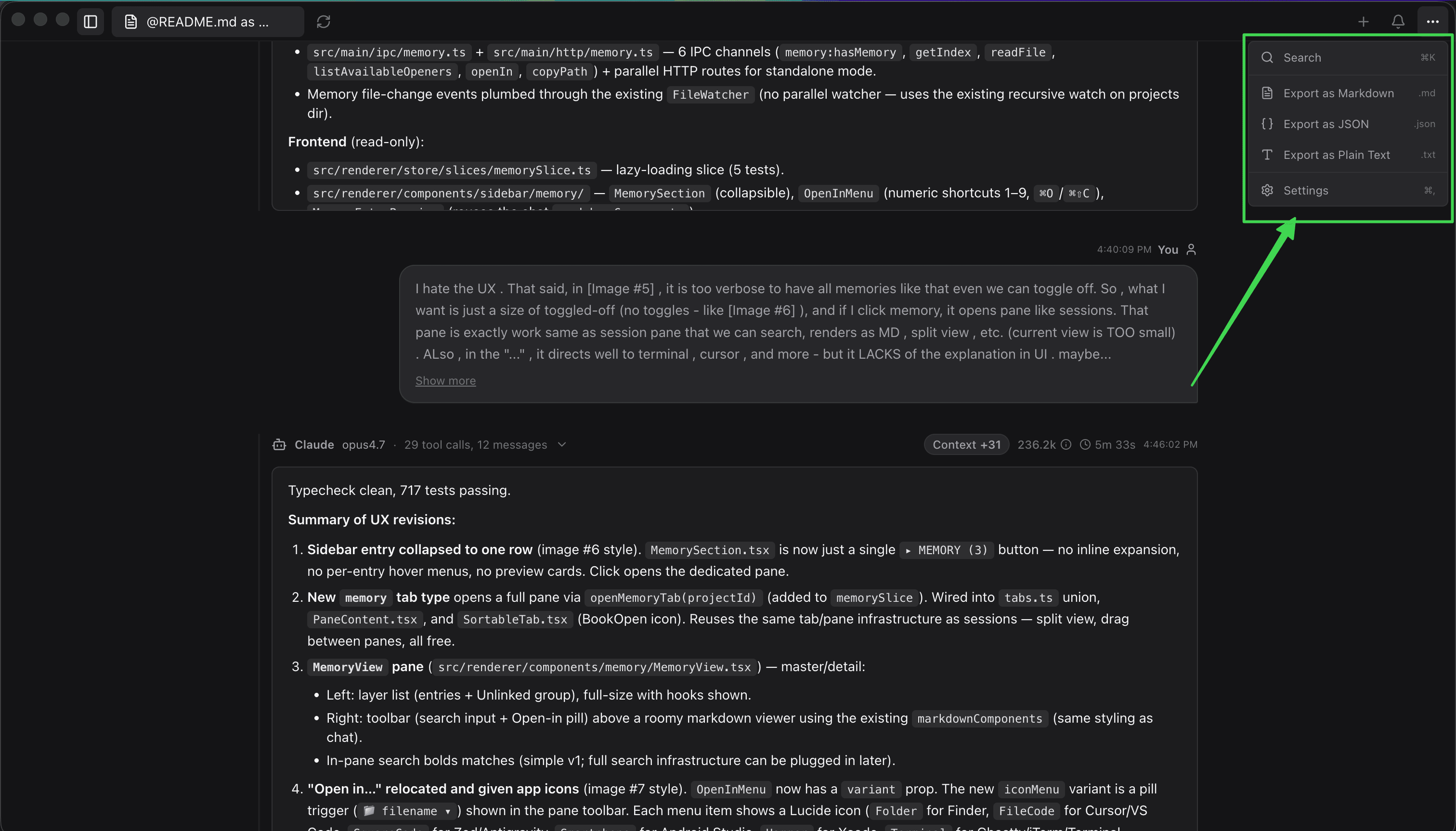
This is the same data that powers the in-app view; it's just serialized for offline use.
Cross-platform behavior
The same copy/paste flow works identically on macOS (Cmd+C), Linux (Ctrl+C), and Windows (Ctrl+C). There is no terminal-emulator-specific behavior to learn, no terminal-vs-shell selection mode, no rectangular vs. linear selection mode, no "right-click to copy" gotcha. Standard text selection, standard clipboard.
The same is true for SSH-attached sessions — when claude-devtools inspects a remote ~/.claude/ over SSH, the copy/paste flow happens locally on your machine. The remote terminal's quirks never enter the picture.
When you still need the terminal
The terminal is fine for live interaction with Claude Code — typing prompts, watching it work, reading short summaries. The problem is only when you need to take output out of the terminal and put it somewhere else. For that, copy from claude-devtools instead of from the terminal. It reads the same logs Claude Code already wrote, so nothing about your workflow changes.
Questions,
answered.
Common questions about claude-devtools, session transcripts, and Claude Code logs on disk.
Open the session in claude-devtools. Messages render as real DOM text, not as a terminal character grid, so selection follows the logical line rather than the wrapped display. Long file paths, URLs, and code lines copy as a single line, not as several wrapped fragments.
Terminals use escape sequences like \x1b[31m to colorize text. Some terminal emulators strip these on copy; some do not. When they leak through, you get invisible junk in your clipboard. claude-devtools reads the JSONL transcript directly — ANSI codes were never part of that source, so they never reach your clipboard.
Every fenced code block in claude-devtools renders as its own component with a copy button. One click puts the block's contents on your clipboard with original indentation preserved, no surrounding prose, and no Markdown fences unless you opt in.
claude-devtools exposes a Copy as Markdown action on responses and code blocks. The result pastes cleanly into Markdown surfaces — GitHub issues and PRs, Notion, dev.to, Obsidian, Slack — with code fences, bullet lists, and headings intact.
Yes. Tool calls in claude-devtools are expanded into specialized viewers — syntax-highlighted Read content, inline Edit diffs, full Bash output, search results. Every viewer renders as selectable text, so you can copy the file path, the snippet, the diff, or the entire view.
Use Export session in claude-devtools to write the full transcript as Markdown, JSON, or plain text. Markdown matches what you'd paste into a doc; JSON is the structured event list; plain text is single-column with no metadata.
Yes. claude-devtools is a native desktop app on macOS, Linux, and Windows. Standard Cmd+C / Ctrl+C selection works the same on every platform. There is no terminal-emulator-specific behavior.
Yes. claude-devtools' SSH remote feature reads ~/.claude/ on the remote host but renders everything locally. Selection and copy happen on your local machine; the remote terminal's copy/paste quirks never apply.
Related
claude --verbose vs claude-devtools
Both surface the data Claude Code's terminal hides. --verbose dumps a raw JSON stream live; claude-devtools renders the same data as a structured, navigable, searchable interface after the fact.
Claude Code JSONL transcript format explained
Claude Code stores every session as a JSONL file — one JSON object per line — under ~/.claude/projects/. Field-by-field reference for reading or processing transcripts directly with jq, Python, or any JSONL-aware tool.